

Connecting Claude AI to TradingView with MCP lets Claude read your live charts, pull indicator values, write Pine Script, and scan your watchlist from plain-English prompts. No screenshots, no copy-paste.
The link runs locally through Chrome DevTools Protocol on port 9222, so your chart data never leaves your machine. At TradingVPSHub, we test trading infrastructure with real money, and this TradingView MCP setup is one of the few 2026 workflows that actually saves desk time.
Below we walk through the full install on Windows, Mac, and Linux, plus how to keep the whole thing online 24/7 on a low-latency VPS. Real steps, real config, zero fluff.
What the Claude and TradingView MCP Bridge Actually Does
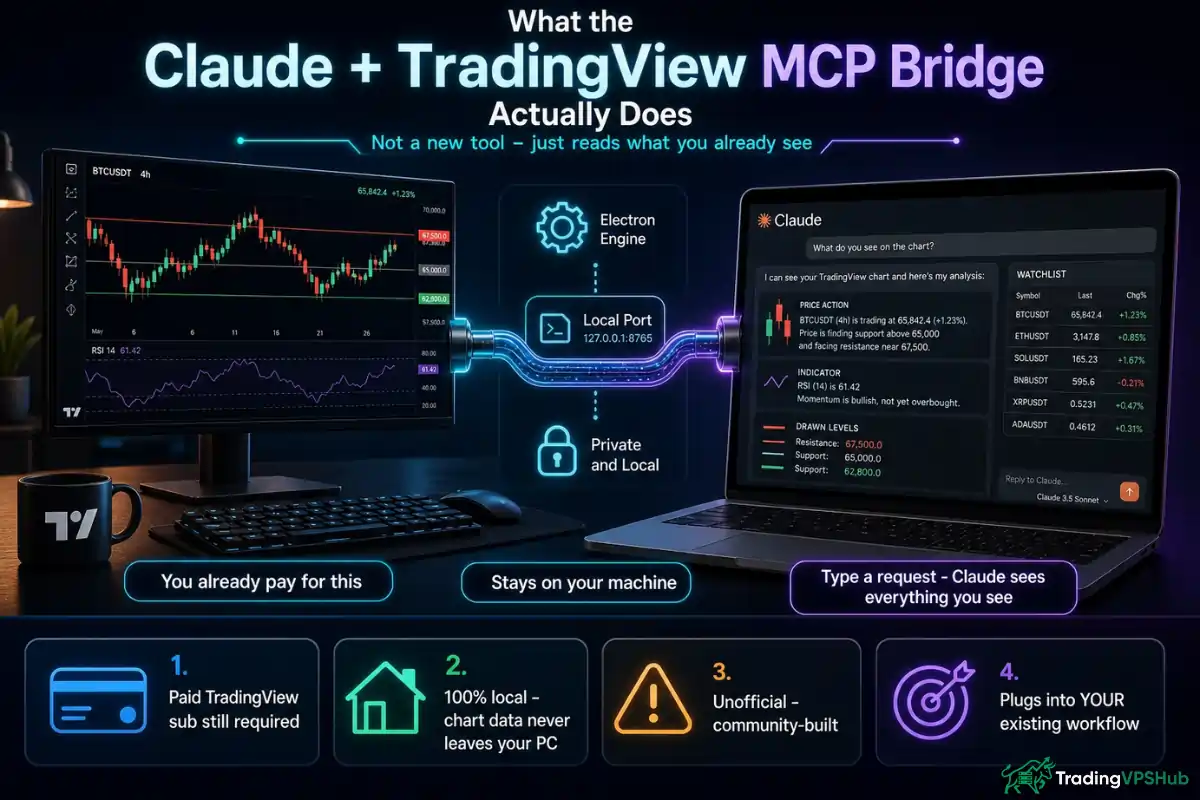
Here's the plain version. MCP is a bridge. It lets Claude look at your TradingView charts and act on them.
TradingView Desktop runs on Electron, the same engine behind Chrome. That means it ships with a built-in debug channel. Turn that channel on at launch, and you open a controlled local access point.
The open-source MCP server grabs whatever sits on your chart through that access point. Then it hands the data to Claude as clean, structured input.
So instead of pasting a chart screenshot into a chat box, you type a request. Claude reads every candle, every indicator value, every drawn level.
A few things worth knowing before we start the install:
We rate this higher than most “AI trading tools” because it plugs into your existing process rather than replacing it.
Why This Setup Belongs on a VPS, Not Your Laptop
Now the part most guides skip. This workflow shines when it runs non-stop.
The morning brief workflow scans your watchlist every session. A scheduled scanner checks charts while you sleep. Both need the machine awake and online around the clock.
Your home laptop cannot do that reliably. Windows reboots mid-scan. Wi-Fi drops. Power cuts kill the session. We learnt that lesson the hard way back in 2012, when a dropped connection cost $1,800 on a single NFP trade.
A trading VPS fixes all of that. TradingView Desktop, Claude Code, and the MCP server sit on a remote Windows server that stays on 24/7. You connect from any device to check in.
Broker proximity also matters here. When your automation fires alerts near a broker-colocated data centre such as LD4 or NY4, execution stays tight.
Our top budget pick to host this stack is Hostinger. Their KVM2 plan handles TradingView plus Claude Code comfortably, and code AFFMAVEN10 drops it to $4.99/mo. For heavier scanners, Quant VPS near CME with AFF30 gives you sub-1.2ms routing.
We benchmark every provider monthly against live brokers, so those numbers come from real ping tests, not vendor PR.
Prerequisites Before You Touch Any Config
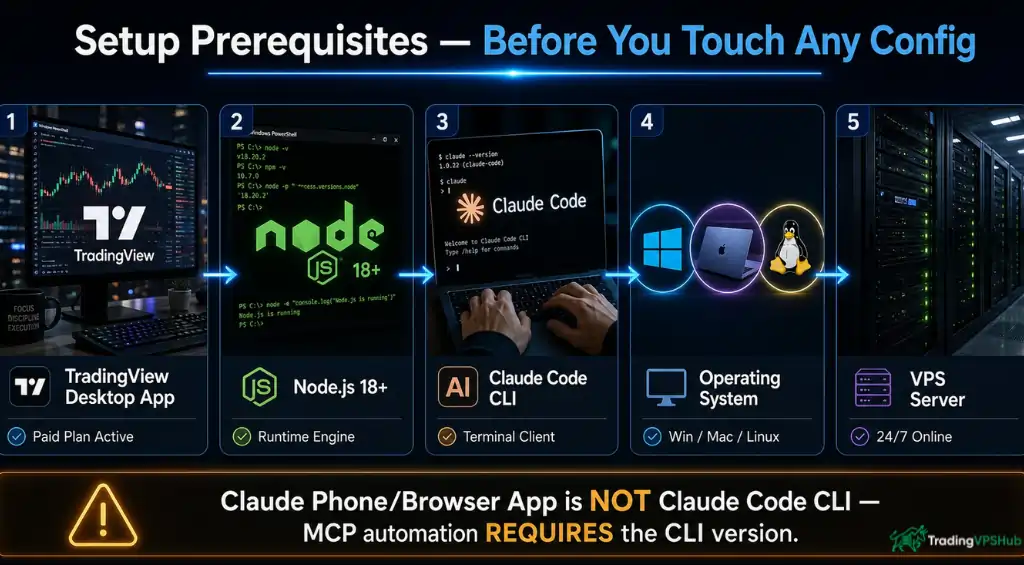
Get these ready first. A clean start prevents setup drift later.
| Requirement | What you need | Why it matters |
|---|---|---|
| TradingView Desktop app | Installed, paid plan active | MCP reads real-time data from the desktop client, not the browser |
| Node.js 18 or newer | Download from nodejs.org | The MCP server runs on Node |
| Claude Code | Command-line version, not the chat app | Automation and MCP tools need the terminal client |
| Operating system | Windows, Mac, or Linux | Launch scripts exist for all three |
| A VPS (recommended) | Windows Server, low broker latency | Keeps the whole stack online 24/7 |
One point traders miss constantly. The Claude phone or browser app is great for chat. It cannot run MCP automation. You need Claude Code, the command-line client.
Also pick your client before editing anything. Claude Desktop reads claude_desktop_config.json. Claude Code reads .mcp.json. We recommend Claude Code for trading, since it gives a persistent terminal beside your charts.
Which TradingView MCP Repo to Clone in 2026
Two community repos matter right now.
The original tradesdontlie/tradingview-mcp laid the foundation. Solid, well-built, 78 MCP tools.
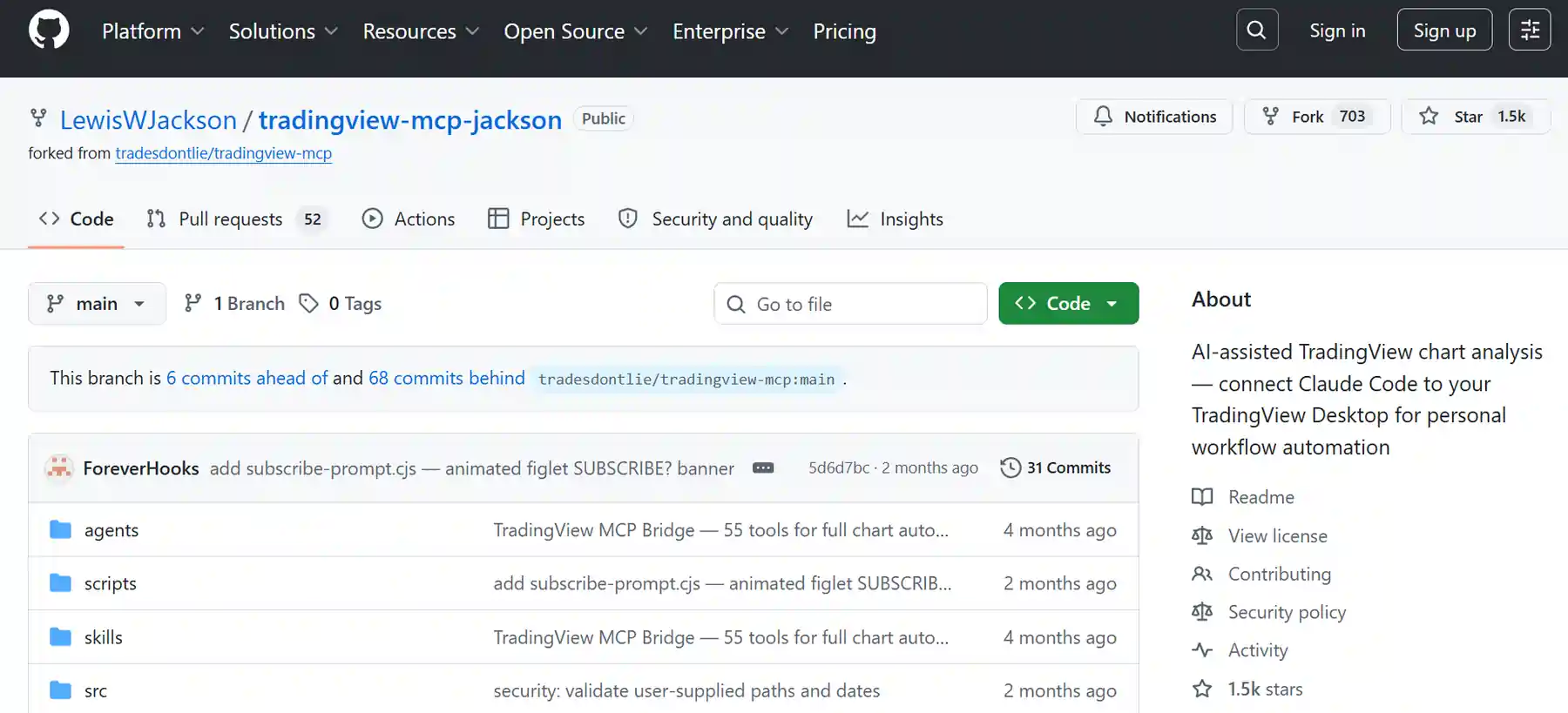
The LewisWJackson/tradingview-mcp-jackson fork builds on top of it. We recommend this one for most traders in 2026. Here's what the fork adds:
Both are unofficial and community-built. TradingView ships no official MCP server. So vet the code before you run it. We always read through a repo first.
Step-by-Step Claude AI to TradingView MCP Connection
Right, let's build it. Follow these steps in order. The whole thing takes 20 to 30 minutes.
Step 1: Clone the repo and install dependencies
Open your terminal on the VPS (or local machine) and run:
git clone https://github.com/LewisWJackson/tradingview-mcp-jackson.git ~/tradingview-mcp-jackson

cd ~/tradingview-mcp-jackson

npm install
That pulls the code and installs every dependency. Wait for npm to finish before moving on.
Step 2: Write your trading rules
Copy the example rules file:
cp rules.example.json rules.jsonOpen rules.json and fill in three things:
Write these once. The morning brief applies them daily, so accuracy here pays off every single session.
Step 3: Launch TradingView with the debug port
This is the piece that trips people up. TradingView must run with Chrome DevTools Protocol enabled on port 9222.
Use the launch script for your system:
| Operating system | Command |
|---|---|
| Mac | ./scripts/launch_tv_debug_mac.sh |
| Windows | scripts\launch_tv_debug.bat |
| Linux | ./scripts/launch_tv_debug_linux.sh |
Once setup finishes, you can also ask Claude directly: “Use tv_launch to start TradingView in debug mode.”
The manual flag behind all three scripts is –remote-debugging-port=9222. That single flag opens the local debug channel.
Step 4: Add the server to Claude Code
Now register the MCP server. Open ~/.claude/.mcp.json and add this block. Merge it with any existing servers rather than overwriting them:
{

  "mcpServers": {

    "tradingview": {

      "command": "node",

      "args": ["/Users/YOUR_USERNAME/tradingview-mcp-jackson/src/server.js"]

    }

  }

}
Swap YOUR_USERNAME for your actual username. On Mac, run echo $USER to check it. On Windows, use your full install path.
Step 5: Restart and verify the connection
Restart Claude Code so it loads the new config. The MCP server only loads at startup.
Then ask Claude: “Use tv_health_check to verify TradingView is connected.”
A healthy response looks like this:
{ "success": true, "cdp_connected": true, "chart_symbol": "...", "api_available": true }If cdp_connected shows false, TradingView never launched with the debug port. Re-run your launch script.
Step 6: Run your first morning brief
Now the fun part. Ask Claude: “Run morning_brief and give me my session bias.”
Or fire it from the terminal:
npm link   # installs the tv CLI globally, one time only

tv brief
Claude scans every watchlist symbol, reads your indicator values, applies your rules.json, and prints a clean session read. Something like:
BTCUSD  | BIAS: Bearish  | KEY LEVEL: 94,200  | WATCH: RSI crossing 50 on 4H

ETHUSD  | BIAS: Neutral  | KEY LEVEL: 3,180   | WATCH: Ribbon direction on daily

SOLUSD  | BIAS: Bullish  | KEY LEVEL: 178.50  | WATCH: Hold above 20 EMA
Save it with “save this brief”. Next morning, compare with “get yesterday's session”. That habit alone earns the setup.
What Claude Can Do Once the MCP Link Is Live
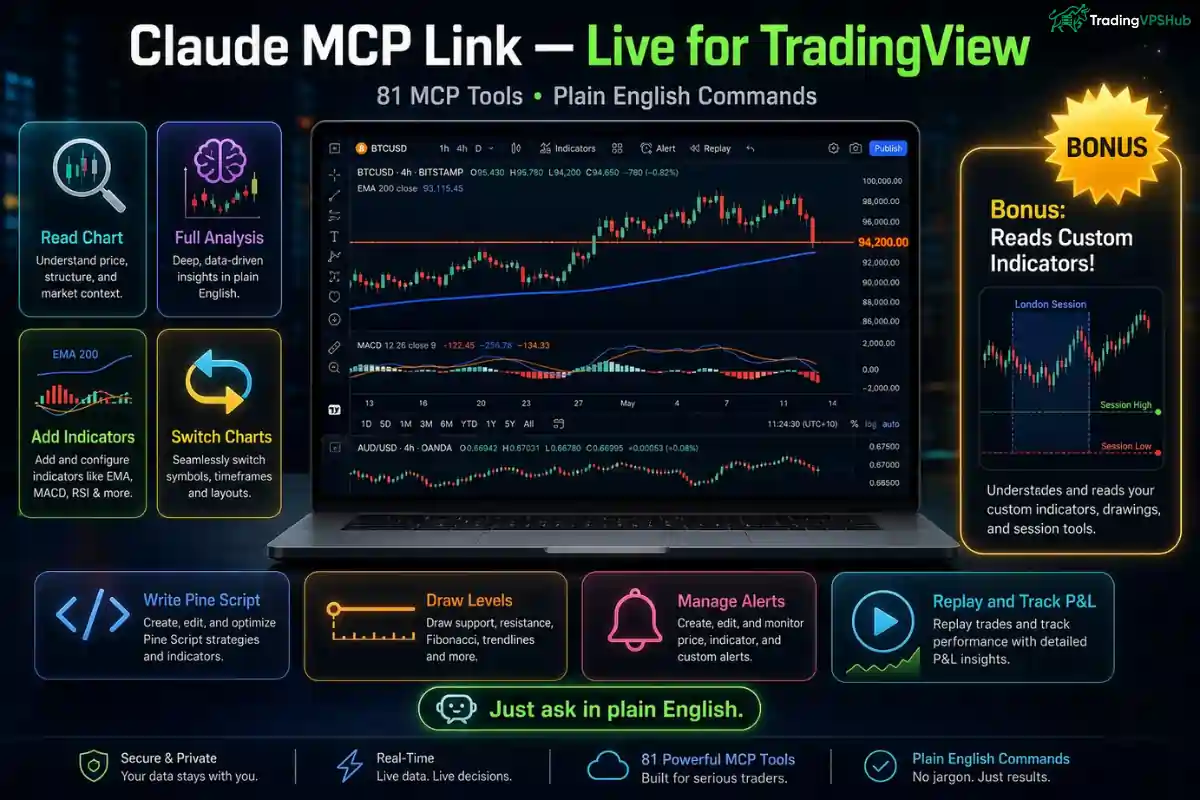
The Jackson fork ships 81 MCP tools. You never memorise them. Claude picks the right tool from your plain-English request.
Here's a taste of the everyday commands:
One surprise from our testing. Claude reads custom indicator drawings as structured data. If a paid indicator draws session levels or a stats table, ask “what levels is my session indicator showing?” and Claude tells you.
How Claude Maps Your Words to the Right MCP Tool
Claude reads a CLAUDE.md file inside the project automatically. That file holds the full decision tree, so it knows which tool fits each request.
| You say | Claude uses |
|---|---|
| “Run my morning brief” | morning_brief then session_save |
| “What was my bias yesterday?” | session_get |
| “What's on my chart?” | chart_get_state, data_get_study_values, quote_get |
| “Switch to BTCUSD daily” | chart_set_symbol, chart_set_timeframe |
| “Write a Pine Script for…” | pine_set_source, pine_smart_compile, pine_get_errors |
| “Start replay at March 1st” | replay_start, replay_step, replay_trade |
| “Draw a level at 94200” | draw_shape (horizontal_line) |
You speak naturally. Claude handles the plumbing underneath.
Locking Down the Setup and Reading Permissions Right
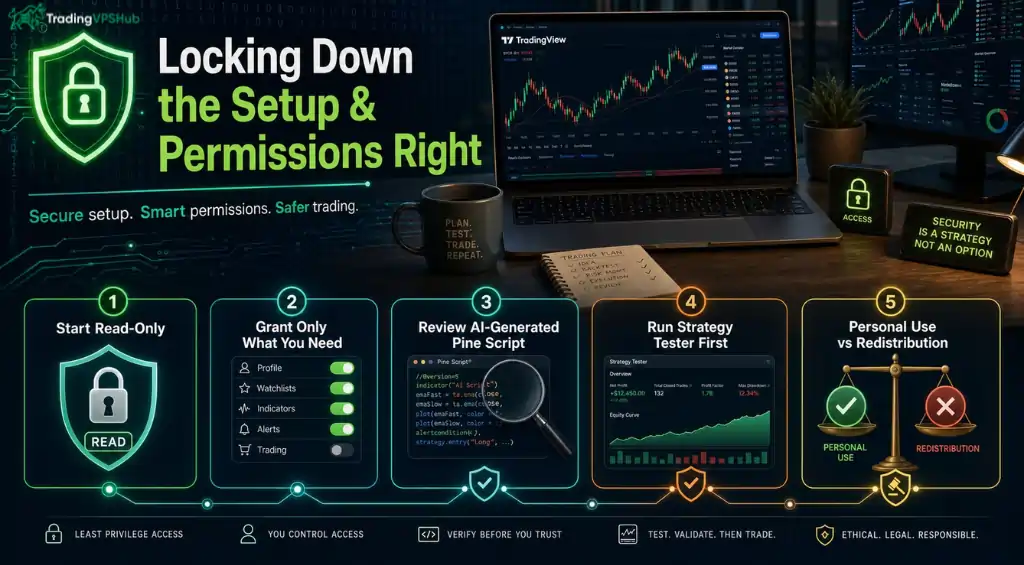
Security first, always. This link touches your live charting client, so treat it with care.
Set permissions to read-only first. Let Claude read charts and pull data before you grant any execution rights. Once you trust how it responds, allow Pine Script edits and chart control.
Grant only the permissions each task needs. There's no reason to hand Claude full control on day one.
A few more guardrails we follow at the desk:
On the legal side, reading your own paid charts for personal use sits in reasonable territory. Redistributing data, selling a paid signals service off it, or scraping unpaid data does not. Check TradingView's Terms of Use if you plan anything commercial. We are traders, not lawyers.
Keeping the Whole Stack Online with a VPS
Here's where TradingVPSHub earns its keep. A morning brief that fires at 6:30 AM only helps if the machine is awake at 6:30 AM.
Run TradingView Desktop, Claude Code, and the MCP server on a Windows trading VPS. Connect over Remote Desktop to check in. The stack keeps ticking even with your laptop shut.
Match your VPS region to the market you trade. Crypto scanners suit a general low-latency box. Futures automation near CME benefits from an NY4 or Chicago server.
Our tested picks for this exact job:
| Provider | Best for | Monthly | Coupon |
|---|---|---|---|
| Hostinger | Budget crypto + forex scanners | $4.99 | AFFMAVEN10 |
| Quant VPS | Futures automation near CME | $29 | READER50 |
| ForexVPS.net | Broker-colocated forex bots | $25 | +1 month free |
| Contabo | High-RAM multi-account setups | $6.99 | Seasonal |
We rent every one of these ourselves and publish the raw latency data. No sponsor bias, no cherry-picking.
A quick setup note for VPS use. TradingView Desktop needs a graphical Windows session, so launch it inside your RDP desktop, not a headless shell. Then keep the session alive rather than signing out fully, or the client closes.
Fixing the Errors You'll Actually Hit
Most setups snag on one of a handful of issues. Here's the quick-fix table from our own runs:
| Problem | Fix |
|---|---|
| cdp_connected: false | TradingView not launched with –remote-debugging-port=9222. Re-run the launch script |
| ECONNREFUSED | TradingView not open, or port 9222 is blocked |
| MCP server missing in Claude Code | Check ~/.claude/.mcp.json syntax, then restart Claude Code |
| tv command not found | Run npm link from the project folder |
| “No rules.json found” | Run cp rules.example.json rules.json and fill it in |
| Watchlist empty | Add symbols to the watchlist array in rules.json |
| Tools return stale data | TradingView still loading, wait a few seconds |
| Pine Editor tools fail | Open the Pine Editor panel first |
Work top to bottom. Nine times out of ten the culprit is the debug port not being on.
Final Read from the TradingVPSHub Desk
Connecting Claude AI to TradingView with MCP turns a chat model into a working chart assistant. It reads your live data, writes and compiles Pine Script, scans your watchlist, and hands you a session bias before coffee cools.
The install is short. Clone the repo, set your rules, launch with the debug port, register the server, verify, run your first brief.
Keep permissions read-only until you trust the output. Read every script. Test before live.
And put the stack on a low-latency trading VPS so it runs while you sleep. Pair it with Hostinger and AFFMAVEN10, or Quant VPS with AFF30, and the whole system pays for itself in saved desk hours. That's how we run ours.
Which part of your morning routine would you automate first — the watchlist scan or the bias read?