

Setting up NinjaTrader on QuantVPS gives your futures desk a low latency trading server sitting right beside the CME in Chicago, with sub-0.52ms execution and a 99.999% uptime SLA.
Your charts, indicators, and automated trading strategies stay live 24/7, even when your home machine sleeps or reboots.
QuantVPS ships Windows Server 2022 with .NET Framework 4.8 ready, so NinjaTrader 8 installs clean in minutes.
Below you get the exact build order we use at TradingVPSHub, from picking a plan and logging in over Remote Desktop Protocol to wiring a Rithmic data feed connection and clearing a prop firm evaluation. Grab 30% off first with code AFF30, then follow each step.
Inside the hardware that keeps NinjaTrader responsive
QuantVPS builds servers for one job, which is fast futures execution. Every plan connects to the CME Group matching engines from a Chicago based trading server at roughly 0.52ms. Storage sits on NVMe.
Processors are AMD EPYC or Ryzen. Windows Server 2022 comes pre-configured, so NinjaTrader has a clean home from the first login.
Here are the four core plans mapped to chart and strategy load.
| Plan | Price /mo | CPU | RAM | NVMe | Monitors | Best chart load |
|---|---|---|---|---|---|---|
| VPS Lite | $59.99 | 4 EPYC cores | 8GB DDR4 | 75GB | 1 | 1 to 2 charts |
| VPS Pro | $99.99 | 6 EPYC cores | 16GB DDR4 | 150GB | 2 | 3 to 4 charts |
| VPS Ultra | $189.99 | 12 EPYC cores | 32GB DDR4 | 300GB | 4 | 5+ charts |
| Dedicated | $299.99 | Ryzen 12+ cores | 128GB DDR4 | 1TB | 6 | Heavy multi-account + optimisation |
QuantVPS also runs a newer DDR5 line on AMD Ryzen, which adds throughput for tick-heavy strategies:
Every tier includes a dedicated IP, DDoS protection, 24/7 NOC monitoring, unmetered bandwidth, automatic backups, and cancel-anytime billing. Setup lands in 1 to 5 minutes on the standard plans. On our own TradingVPSHub benchmark journal, QuantVPS holds the top NinjaTrader VPS hosting spot, and this is why.
Gear and credentials to line up first
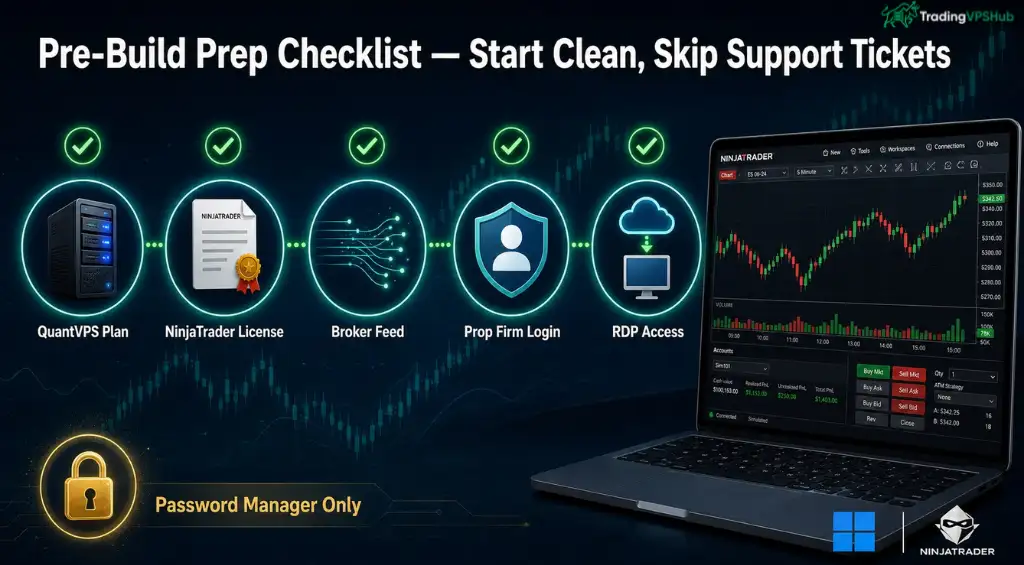
A clean start saves you a support ticket later. Get these ready before you touch Remote Desktop, then the whole build moves fast.
| What to line up | Detail | Why NinjaTrader needs it |
|---|---|---|
| QuantVPS plan | Lite for 1 to 2 charts, Pro or Ultra for more | Chart and strategy count sets your RAM and CPU need |
| NinjaTrader licence | Free for sim and charting, lease or lifetime for live | Live orders route through a funded, licensed connection |
| Data feed or broker | Rithmic, Tradovate, CQG, or NinjaTrader Brokerage | Choice decides connection type and gateway server |
| Prop firm login | Apex, Topstep, MyFundedFutures username, password, PIN | Evaluation accounts authenticate through the feed |
| RDP details | VPS IP, Windows username, temporary password | Needed to reach the Windows Server 2022 desktop |
Save your VPS login inside a password manager, not a plain text file. Then move on.
How to Set up NinjaTrader on QuantVPS: A Complete Walkthrough
Step 1: Match a QuantVPS plan to your chart and strategy load
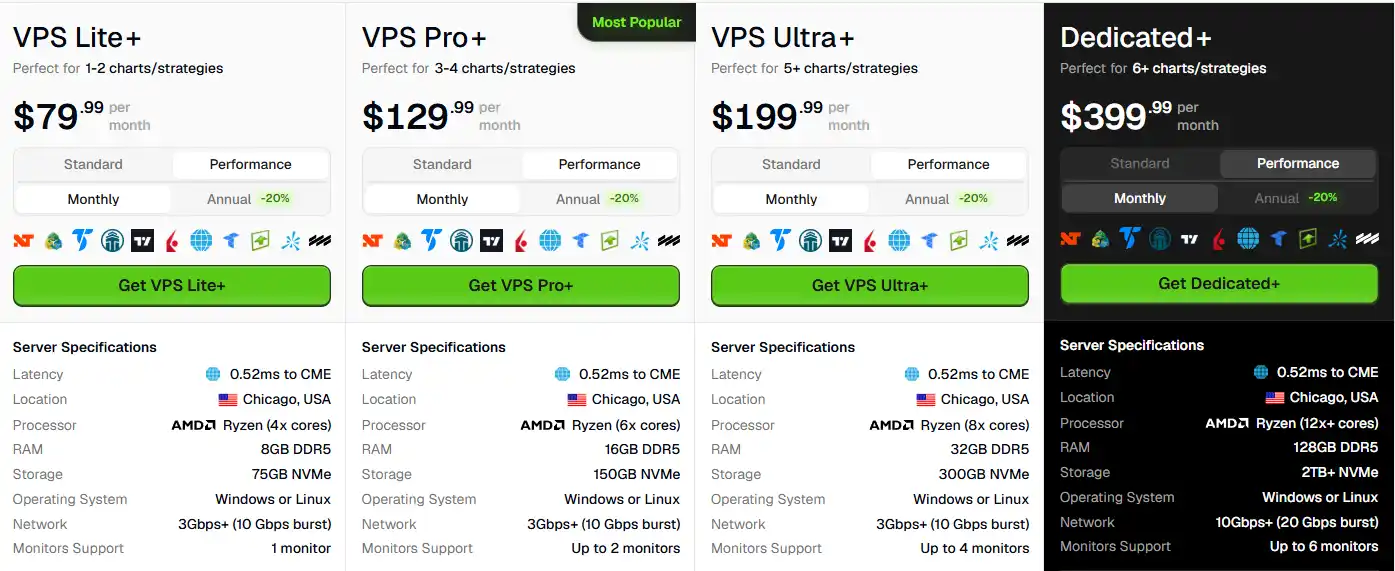
NinjaTrader is light with one or two charts and heavier once you stack Market Analyzer columns, tick replay, and several live strategies. So size the plan to how you actually trade.
NinjaTrader uses every available CPU core, and optimisation memory scales with core count. Under-buy and your platform stutters during news. Right-size once and you avoid a migration later.
Step 2: Log in over Remote Desktop with your VPS credentials
QuantVPS emails your IP, Windows username, and password within minutes of checkout. On Windows, open Remote Desktop Connection, or launch it straight from the Run box:
mstsc /v:203.0.113.45
Swap in your real VPS IP. Enter the username and password when prompted, and the Windows Server 2022 desktop loads like a remote trading PC.
First action once inside: change the Windows password to something long and unique. Skip broker names, account numbers, and birthdays.
Step 3: Harden the Windows Server session before trading
A VPS faces public internet traffic, so lock it down before NinjaTrader goes anywhere near a live order.
QuantVPS layers DDoS protection and 24/7 monitoring on top, but session hygiene is still your job. A clean server with one platform and one verified strategy beats a cluttered one every time.
Step 4: Confirm .NET Framework 4.8 and Windows readiness
NinjaTrader 8 needs Microsoft .NET Framework 4.8 or higher, and its installer refuses to proceed without it. Windows Server 2022 on QuantVPS already ships with 4.8, though a quick check costs you nothing. Open PowerShell as administrator and read the release key:
Get-ItemPropertyValue -Path ‘HKLM:\SOFTWARE\Microsoft\NET Framework Setup\NDP\v4\Full' -Name Release
A value of 528040 or higher confirms .NET Framework 4.8 is present. If the number comes back lower, grab the current runtime from Microsoft and reboot. While you are here, install pending Windows updates and confirm the display resolution sits at a practical size, since very high resolutions slow the remote session.
Step 5: Download and install NinjaTrader 8
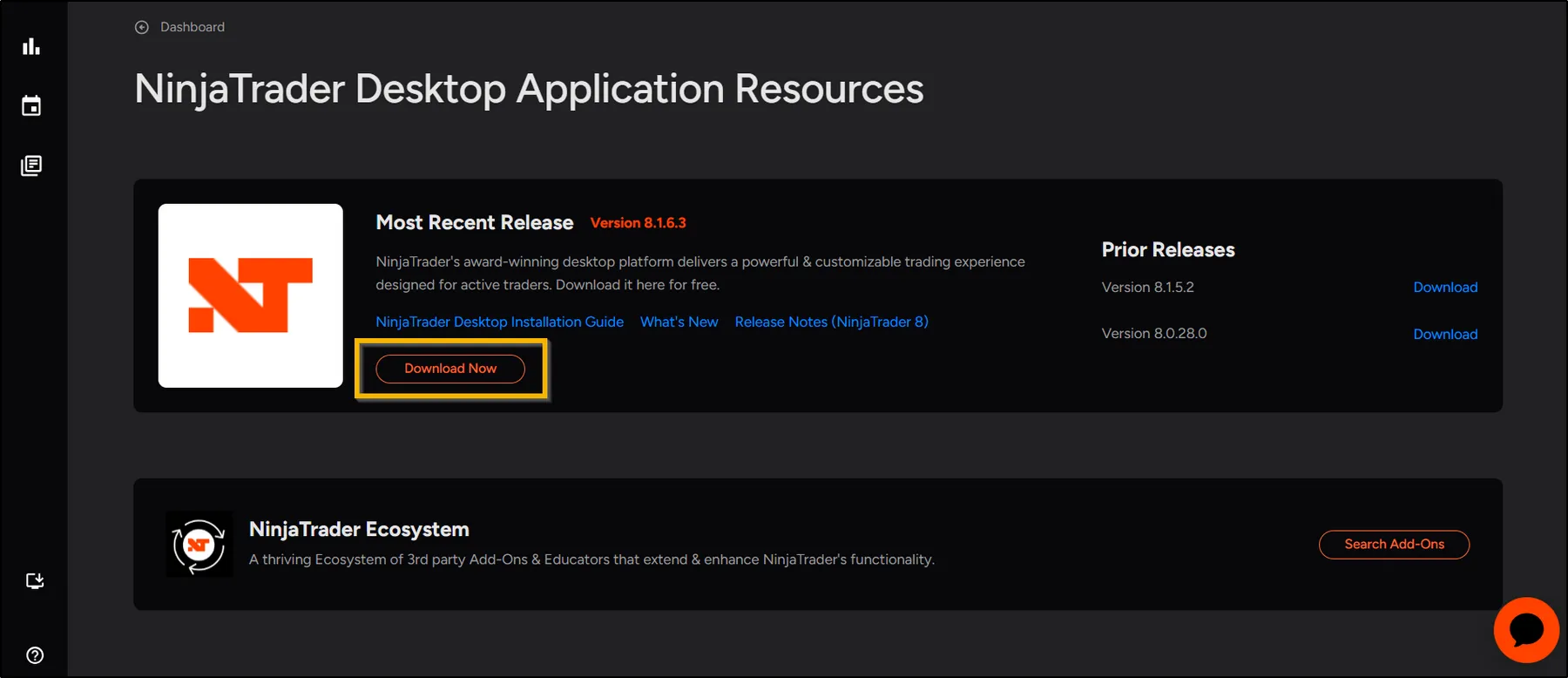
Pull the installer only from the official source. Log in to your NinjaTrader Dashboard, then click Download at the bottom left of the Home page. Copy the file onto the VPS through the RDP session, or download it directly inside the server browser.
NinjaTrader Desktop is Windows-only, so a Mac, Chromebook, or Linux box cannot host it. A Windows Server 2022 environment on QuantVPS removes that limit entirely.
Step 6: Activate your NinjaTrader licence
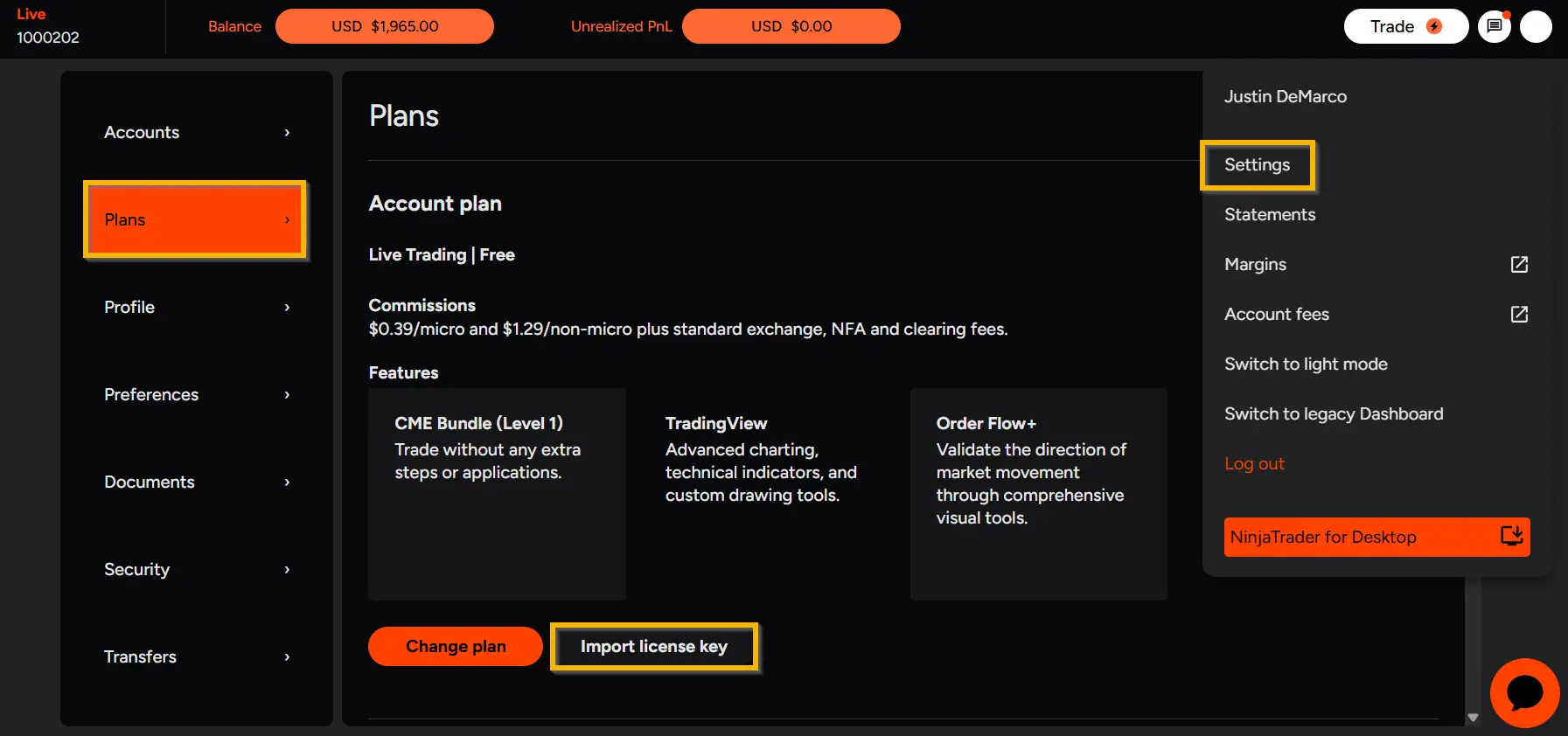
At first launch NinjaTrader asks for a licence key. Two routes exist.
If you are upgrading an existing install, the licence carries over automatically. Confirm the Control Center shows your account tier before moving on.
Step 7: Wire your Rithmic or Tradovate data feed
Live futures need a data feed, and your broker or prop firm decides which one. NinjaTrader stores each feed under Connections, so add yours through the Control Center.
Use this reference to pick the right connection type and gateway.
| Data feed | Simultaneous connections | Primary gateway | Common with |
|---|---|---|---|
| Rithmic | One active at a time | Chicago | Apex, Topstep, AMP Futures, NinjaTrader Brokerage |
| Tradovate | Multiple at once | Cloud, CME-proximate | Many futures prop firms |
| CQG | Feed dependent | Chicago | TradeStation-linked accounts, select prop firms |
For a Rithmic data feed connection, enter the credentials from your broker, pick the correct System, then set the gateway.
Choose a Chicago gateway where offered, because your QuantVPS server already sits beside the CME, so data travels metres, not continents. Select Rithmic Paper Trading for sim, or the live system once your data agreement is signed.
For Tradovate or CQG, click Add, select the feed, and enter your API or account credentials. To hold Rithmic and Tradovate side by side, switch on Multi-Provider Mode, which lets NinjaTrader keep external feeds live together. Save, then reconnect from Connections to confirm a green status.
Step 8: Tune NinjaTrader for round-the-clock uptime
Unattended trading rewards clean habits. Your goal is low platform load and zero surprise restarts.
A quick network check from PowerShell confirms your route stays healthy:
Test-Connection rithmic.com -Count 4
Because a normal RDP disconnect leaves the Windows session live, NinjaTrader keeps trading after you close Remote Desktop. Signing out or shutting down, though, stops the platform, so disconnect rather than log off.
Step 9: Load strategies and test on the sim feed
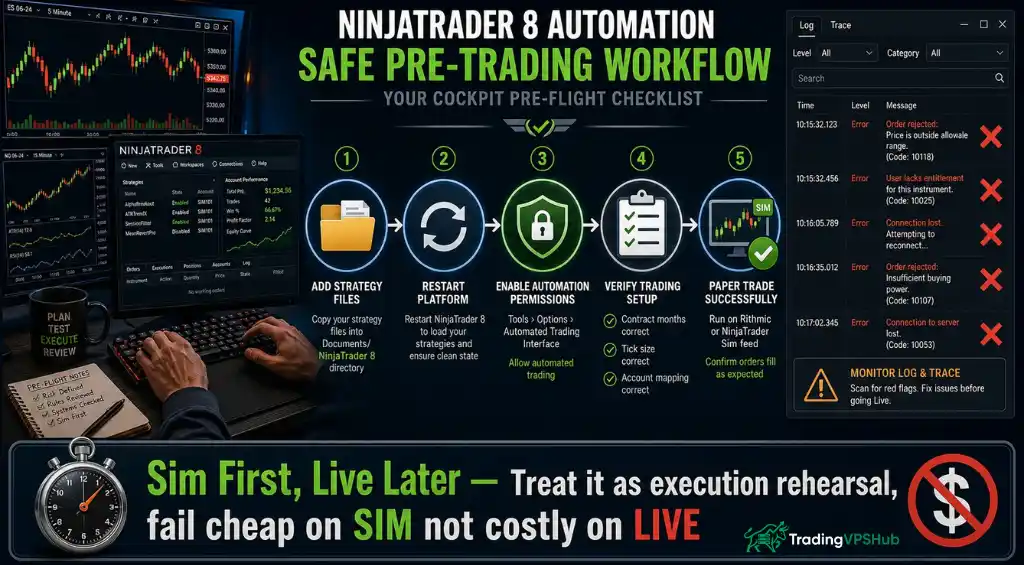
Attach nothing to a live account until sim behaviour looks clean. Copy strategy files, indicators, and templates into the NinjaTrader 8 folder under Documents, then restart the platform so it reads them.
Treat this as execution rehearsal. A futures prop firm evaluation is far cheaper to protect on sim than to blow on a config typo.
Step 10: Benchmark latency and confirm live fills
Marketing numbers mean little until you measure your own route. Once connected, watch fill speed and slippage on a small live or evaluation position.
Sitting at roughly 0.52ms from the CME, a QuantVPS Chicago box gives NinjaTrader sub-millisecond order execution that a home connection on 20 to 50ms cannot touch. That gap is exactly what saves you a bad fill during a fast tape.
| Plan | Regular | With AFF30 |
| VPS Lite | $59.99 | $41.99/mo |
| VPS Pro | $99.99 | $69.99/mo |
FAQs About Setting Up NinjaTrader on QuantVPS
Does NinjaTrader run 24/7 on QuantVPS when my PC is off?
Yes. Your VPS lives in the QuantVPS datacentre and stays online independently, so NinjaTrader, your feeds, and your strategies keep trading while your own computer sleeps, restarts, or goes offline.
Which QuantVPS plan suits NinjaTrader 8 best?
VPS Lite handles one or two charts on a single evaluation account. VPS Pro, with 16GB RAM, fits three to five charts, indicators, and a copier. Multi-account or optimisation workloads want VPS Ultra or a Dedicated box.
Is .NET Framework 4.8 already installed on QuantVPS?
Yes. QuantVPS ships Windows Server 2022 with .NET Framework 4.8 in place, which is the minimum NinjaTrader 8 requires. A quick PowerShell release check confirms it before you install.
Can I connect Rithmic and Tradovate at the same time?
Yes, once Multi-Provider Mode is enabled. Rithmic allows one active connection at a time, while Tradovate supports several simultaneously, so multi-feed setups need that mode switched on.
Will QuantVPS pass a futures prop firm evaluation?
QuantVPS is built for prop trading and supports firms such as Apex, Topstep, MyFundedFutures, Tradeify, and Lucid. The 0.52ms CME latency and 99.999% uptime help you avoid slippage and stay inside evaluation rules.
How much does a NinjaTrader VPS cost after the AFF30 code?
VPS Lite drops from $59.99 to $41.99 a month with AFF30, and VPS Pro from $99.99 to $69.99. The discount applies at checkout across the monthly plans.
Your NinjaTrader on QuantVPS build, in order
Keep the flow simple and you deploy in under an hour.
A NinjaTrader desk is only as fast as the server under it. Put yours beside the CME, lock in the discount, and let your strategies trade while you step away.