
A Forex VPS lets traders keep MT4, MT5, bots, charts, and Expert Advisors online from a remote Windows server instead of relying on a home laptop or office PC.
Forex VPS setup usually means choosing a provider, connecting through Remote Desktop Protocol, installing a trading platform, logging in to a broker account, adding Expert Advisors, and testing order flow before live use.
For traders, speed and uptime matter because delayed platform access, power cuts, weak Wi-Fi, or local PC restarts can break trade management.
A well-set Forex VPS setup helps reduce local device risk, keeps platforms active longer, and gives automated strategies a cleaner place to operate.
TradingVPSHub believes a good VPS setup should be simple enough for beginners yet strict enough for serious traders.
So, in this guide, we will cover server choice, RDP login, MT4 and MT5 setup, EA settings, VPS security, latency checks, monitoring, and practical fixes without fluff.
What Is a Forex VPS?
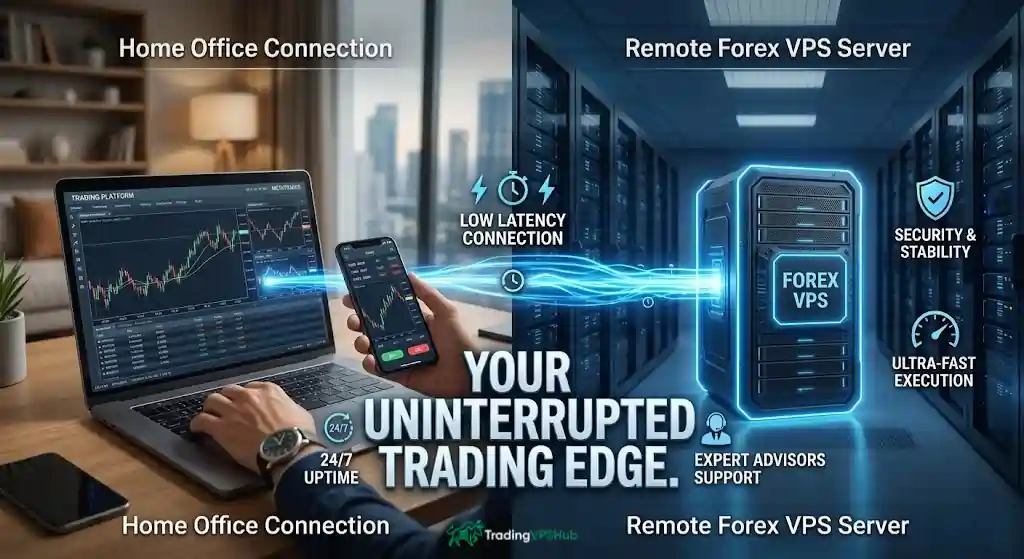
A Forex VPS is a remote server used for trading platforms, usually with Windows Server, stable internet, dedicated resources, and remote access. Traders connect to it from a laptop, phone, or desktop, then keep platforms such as MetaTrader active on that server.
Think of it as a trading computer placed closer to broker infrastructure. Your own device becomes a control screen, while your low latency Forex VPS handles platform uptime and trade software access.
A VPS does not make bad strategies profitable. It only gives trading software a stable environment, which is useful for Expert Advisors, copy trading tools, trade copiers, scalpers, grid systems, news tools, and multi-terminal setups.
Why Traders Use Forex VPS Hosting
Many retail traders start on a normal PC. That works until the internet drops, a laptop sleeps, Windows restarts, or a bot stops because MetaTrader was closed.
A VPS helps because your trading platform stays active on a remote server instead of your local machine. Beginner guides from Forex VPS providers follow a similar core process: register, connect by RDP, install trading software, add a robot if needed, then test settings before live use.
A strong VPS for automated trading is useful for:
For trading setups, traders should focus on latency, CPU, RAM, storage type, server region, uptime, and platform load instead of choosing a VPS only because it looks cheap. SSD storage, high uptime, and proper support are widely listed as key VPS factors for Forex use.
Before You Start: VPS Setup Checklist
Before you install anything, get your core details ready. A clean start saves time and prevents setup drift later.
| Setup item | What to prepare | Why traders need it |
|---|---|---|
| Broker server name | Example: live server name from MT4 or MT5 login screen | Helps choose nearest VPS location |
| Trading platform | MT4, MT5, cTrader, NinjaTrader, TradingView bridge, or copy tool | Each platform uses CPU and RAM in a different way |
| Strategy type | Scalping, swing trading, grid EA, news EA, copier, or signal tool | Strategy decides how much latency matters |
| VPS location | LD4, NY4, TY3, SG1, FR2, HK1, CH2, SY3, or nearest broker centre | Broker proximity can lower network delay |
| Login method | Remote Desktop Connection for Windows VPS access | RDP is used to access Windows Server desktops remotely |
| Security plan | Strong password, NLA, firewall rules, updates | NLA and access limits reduce RDP exposure |
| Test plan | Demo account, small lot, journal review, latency test | Confirms EA and server behaviour before live scale |
Do not pick a VPS only because it has large RAM or a flashy dashboard. Start with broker distance, uptime track record, Windows quality, support skill, and platform fit.
Step 1: Match VPS location to broker
A trader’s first question should be simple: where is my broker’s trading server?
If your broker uses London infrastructure, a London VPS often makes sense. If your futures or CFD flow goes through New York, NY4 can be better. If your broker has Asia routing, Singapore, Tokyo, or Hong Kong may work better.
TradingVPSHub benchmarks focus on real broker routes, not generic speed claims. On site tests, broker-linked latency numbers are checked against real trading infrastructure, including LD4, NY4, TY3, SG1, FR2, HK1, CH2, and SY3.
For broker server latency, lower is usually better. MetaTrader’s own virtual hosting help notes that lower network delay can improve trading conditions and may reduce slippage or re-quotes.
Do not assume your closest country is best. A trader in India using a broker server in London may get better execution from a London VPS than from a local server.
Step 2: Choose resources for your platform
A beginner Forex VPS does not need gaming-level hardware. It needs a stable CPU, enough RAM, SSD storage, clean Windows, and low broker ping.
MT4 can work on modest hardware, and OANDA notes MT4 can operate with basic specifications, though higher specs give a smoother experience. MT5 usually benefits from more RAM, and one 2026 MT5 system guide lists 2 GB RAM as a minimum and 4 GB or more as better for smoother use.
Use this simple sizing guide before buying any plan.
| Trading setup | CPU | RAM | Storage | Best fit |
|---|---|---|---|---|
| 1 MT4 terminal, 1 to 2 light EAs | 1 core | 2 GB | SSD | Basic MT4 VPS setup |
| 1 MT5 terminal, several charts | 2 cores | 4 GB | SSD | Stable MT5 VPS setup |
| 2 to 4 MetaTrader terminals | 2 to 4 cores | 6 to 8 GB | SSD | multi account trading VPS |
| Grid EA or tick-heavy EA | 4 cores | 8 GB plus | Fast SSD | Expert Advisor VPS |
| NinjaTrader or heavy desktop tools | 4 cores plus | 8 GB plus | Fast SSD | Advanced trading workstation |
CPU stability matters more than headline core count. A cheap overloaded VPS can freeze during news even if the spec sheet looks fine.
RAM also matters once you use several terminals. If Windows, MT5, indicators, trade copiers, browser tabs, and remote tools all share low memory, your platform can slow down.
Step 3: Order VPS and save access details
After you choose location and resources, your provider will usually send four key details:
Save these in a password manager. Do not keep plain text VPS logins inside email or chat apps.
For Windows VPS for forex, most providers use Microsoft Remote Desktop Protocol. Microsoft describes RDP as a protocol used for remote graphical access to Windows systems.
If the provider gives you a custom panel, use it for reboot, password reset, reinstall, and resource checks. Do not reinstall Windows unless you understand the impact of the backup.
Step 4: Connect with Remote Desktop
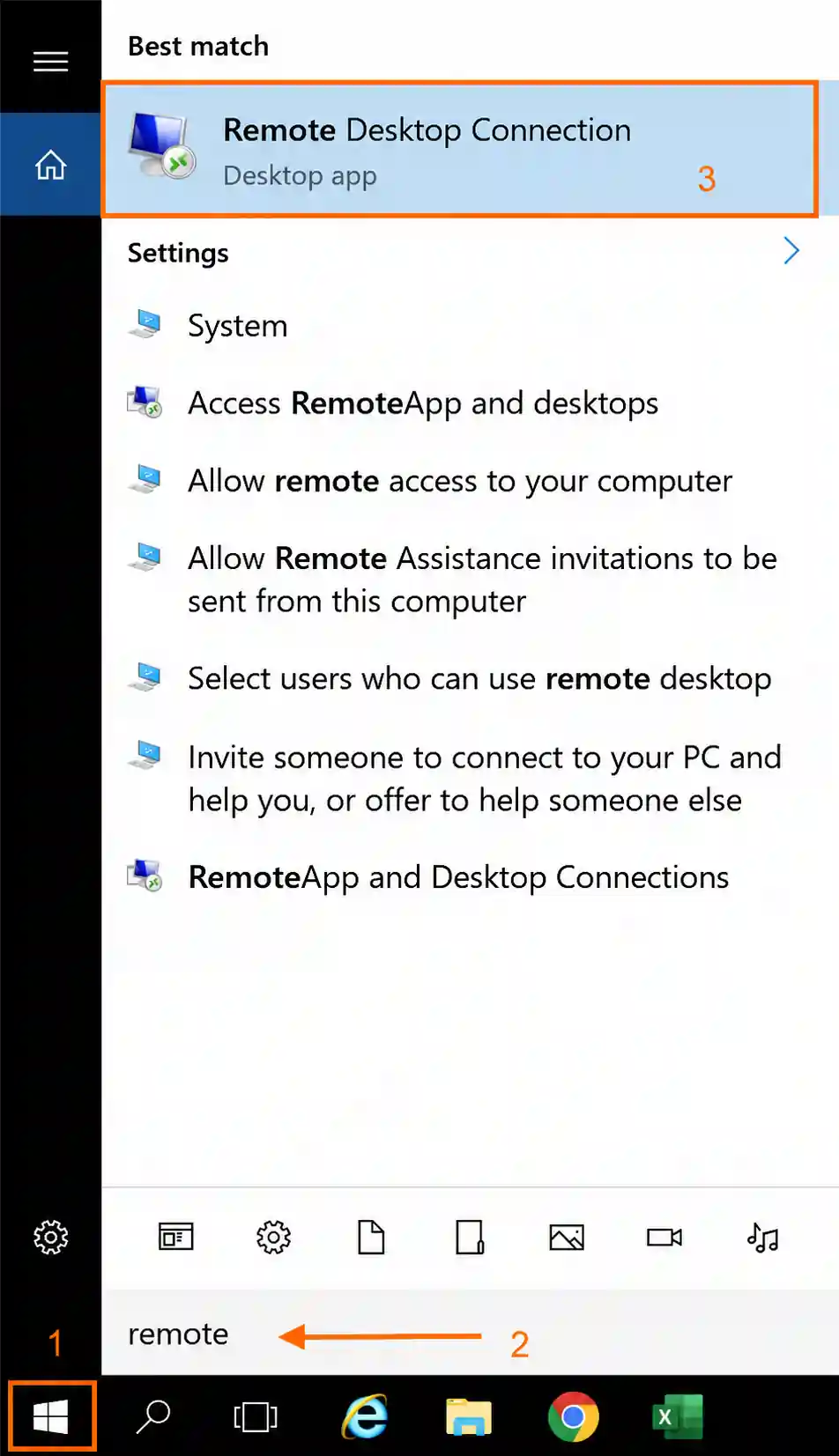
On Windows, open Remote Desktop Connection. Enter VPS IP, click Connect, then enter username and password.
On macOS, install Microsoft Remote Desktop from the App Store. Add PC, enter IP, then add your Windows login.
On Android or iPhone, use Microsoft Remote Desktop only for checks or emergency edits. Full setup is easier from a laptop or desktop.
Once connected, you should see a Windows Server desktop. From here, your VPS works like a remote trading PC.
Change your password first. Use a long password with letters, numbers, and symbols. Avoid broker name, account number, birthday, or EA name.
Step 5: Lock down Windows before trading
Security comes before platform install. A VPS is exposed to internet traffic, so basic hardening matters.
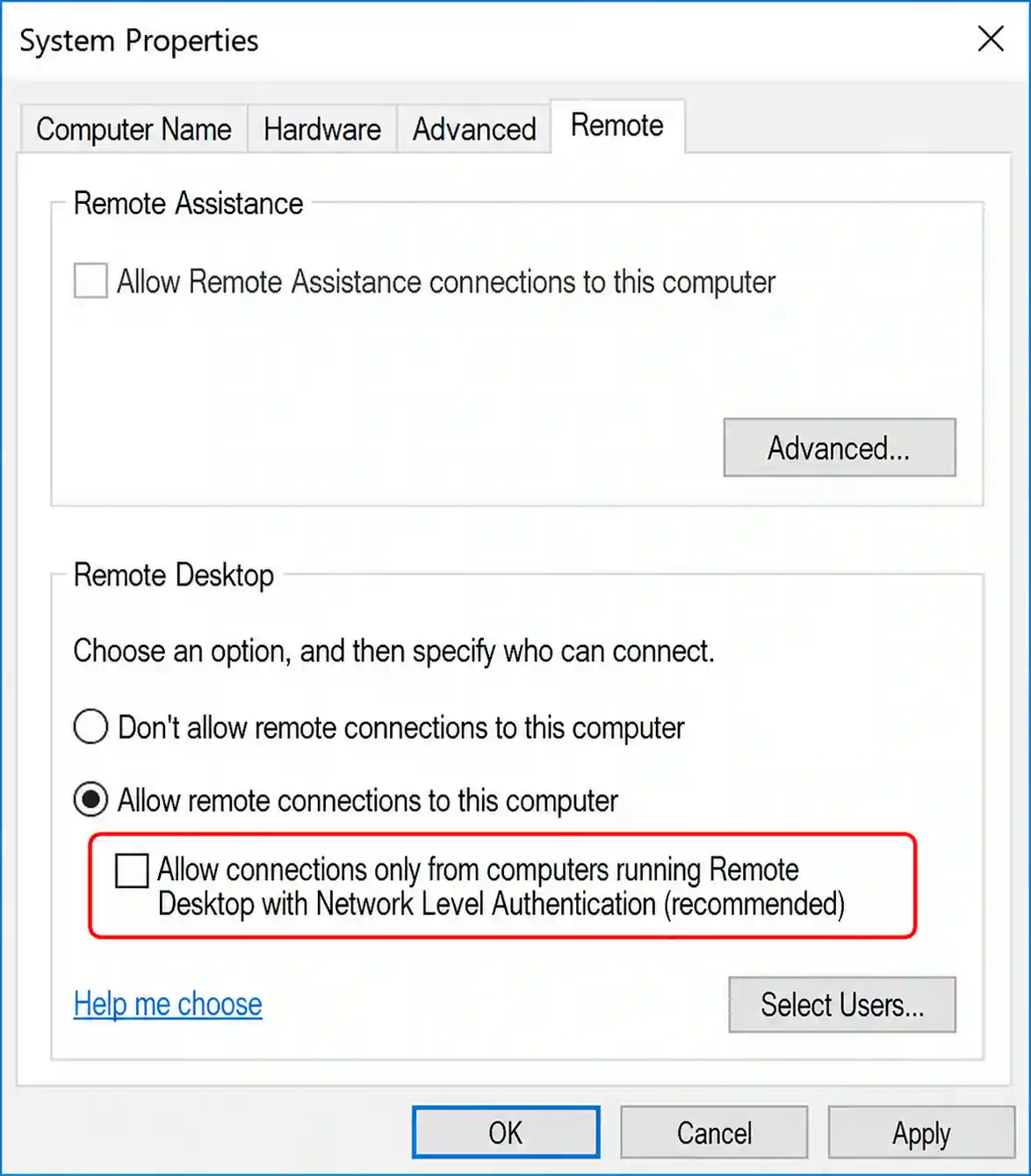
Enable Network Level Authentication if the provider has not already enabled it. NLA requires authentication before full RDP session creation, which helps reduce unauthorised connection attempts and resource abuse.
Restrict RDP access if your provider supports IP allowlisting. RDS security guidance also recommends limiting access by trusted IP ranges or VPN ranges where possible.
Use these settings before trading:
| Security setting | Recommended setup | Reason |
|---|---|---|
| Windows password | Long, unique, stored safely | Prevents simple credential attacks |
| NLA | Enabled | Authenticates before session creation |
| Windows Update | Manual schedule during quiet market time | Avoids surprise restarts during active trades |
| Firewall | Keep enabled | Blocks unwanted inbound traffic |
| Admin account | Rename if provider allows | Lowers automated login guesses |
| Clipboard sharing | Disable if not needed | Reduces copy-paste risk |
| Drive sharing | Disable unless required | Limits local file exposure |
Do not install random EA files, cracked indicators, browser extensions, or unknown trade copiers. A VPS with live trading access should stay clean.
Step 6: Install MT4 or MT5 properly
Download MetaTrader from your broker site, not from random mirror sites. Broker versions often include correct server lists and account routing.
For MetaTrader VPS hosting, install each terminal in its own folder if you use several accounts. Example: one MT4 folder for broker account one, one MT4 folder for account two, and one MT5 folder for another broker.
During install, avoid changing too many settings. Keep Windows clean, use default folders when possible, then create desktop shortcuts with clear names.
After install, log in to your broker account. Check bottom-right connection status, server name, ping, and journal messages.
Open Market Watch only for symbols you trade. Hiding unused symbols can reduce terminal load.
Step 7: Add EAs, indicators, and presets
To add EA files in MT4, go to File, Open Data Folder, then MQL4, then Experts.
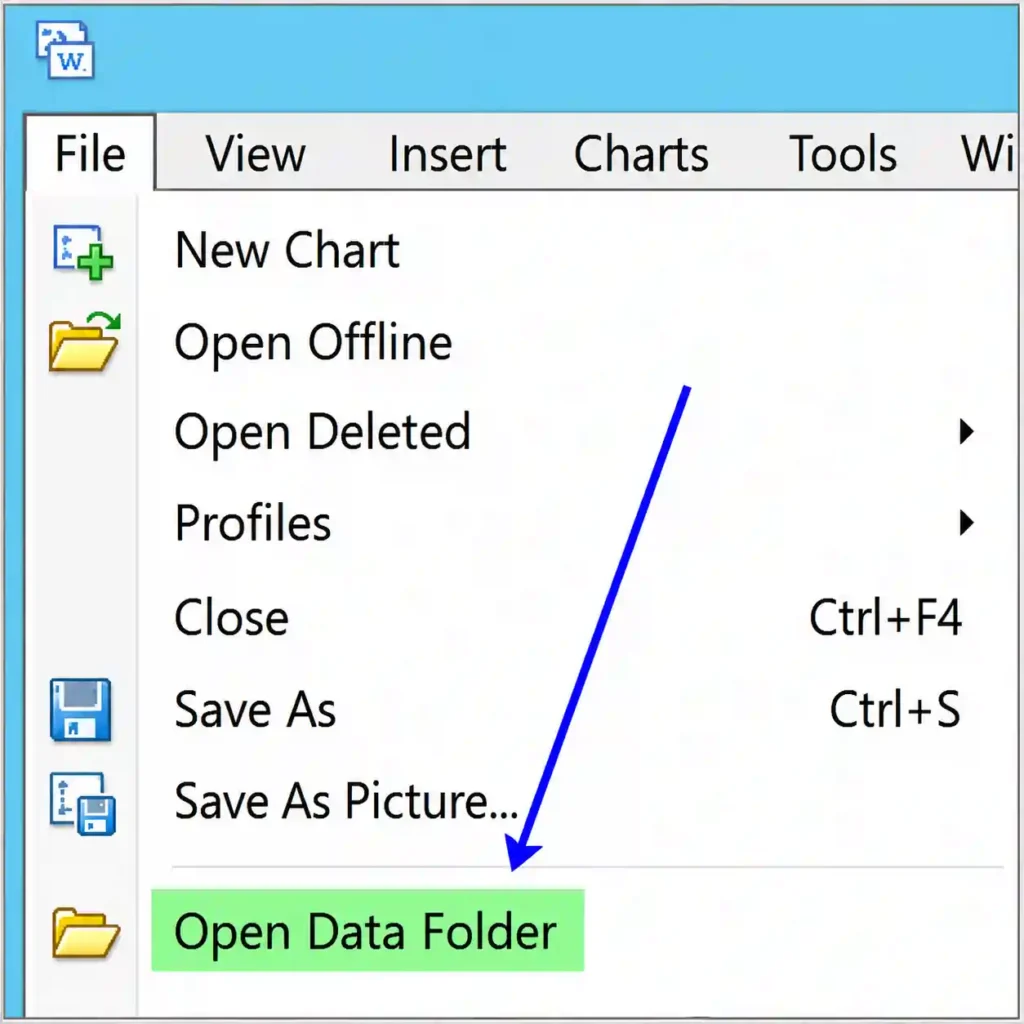
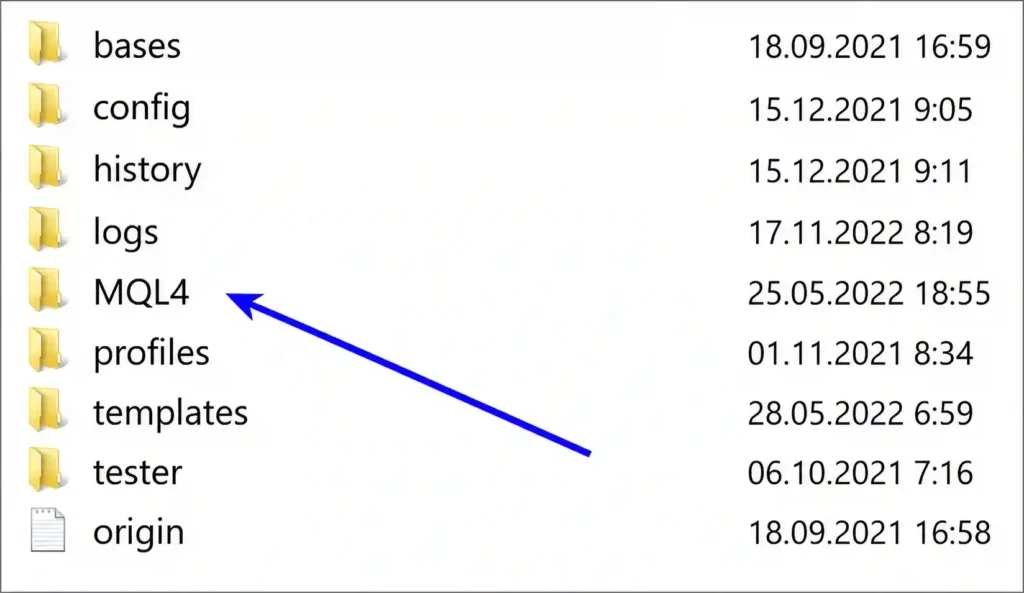
For MT5, use File, Open Data Folder, then MQL5, then Experts.
Place indicators in the Indicators folder. Place presets in the Presets folder. Restart terminal after file copy.
MetaTrader 4 EAs can analyse price data and manage trading actions based on programmed signals . MT5 EAs can also process trading events and work with more advanced MQL5 features .
Now attach EA to the chart. Pick the correct symbol, timeframe, and preset file.
Turn on platform-level AutoTrading. Then check EA settings for “Allow automated trading” or similar permissions. MT5 allows automated trading control both globally and inside individual EA settings.
Do not attach live EAs without checking lot size, stop loss logic, max spread rules, trade time filter, magic number, and symbol suffix.
Step 8: Configure VPS for stable trading
A 24/7 trading platform needs clean Windows habits. Your goal is to keep terminal load low and uptime high.
Set Windows power settings to avoid sleep. VPS servers usually do not sleep like laptops, but checking power policy still makes sense.
Set display resolution to a practical size. Very high resolution can make remote sessions slower.
Close browsers after downloads. Browsers eat RAM and can keep background processes active.
Disable startup apps you do not need. Keep only trading platforms, copier, monitoring agent, and security tools.
Set terminal options with care:
| MetaTrader setting | Suggested action | Why it helps |
|---|---|---|
| Max bars in chart | Lower if EA does not need full history | Saves RAM and CPU |
| News tab | Disable if not used | Lowers background calls |
| Alerts | Keep only needed alerts | Reduces noise |
| AutoTrading | Enabled only after checks | Prevents accidental orders |
| Journal | Review after setup | Shows errors, disconnects, EA blocks |
| History symbols | Keep required pairs only | Reduces load |
For forex robot hosting, stability beats clutter. A clean VPS with one terminal and one verified EA is better than a messy VPS packed with tools.
Step 9: Test latency before live scale
Do not trust provider marketing alone. Test your own broker connection.
In MT4 or MT5, check server ping from connection status. In MT5, use relevant server details and journal messages to confirm connection health. MetaTrader virtual hosting docs also stress comparing local delay with hosting server delay when choosing a server close to broker infrastructure.
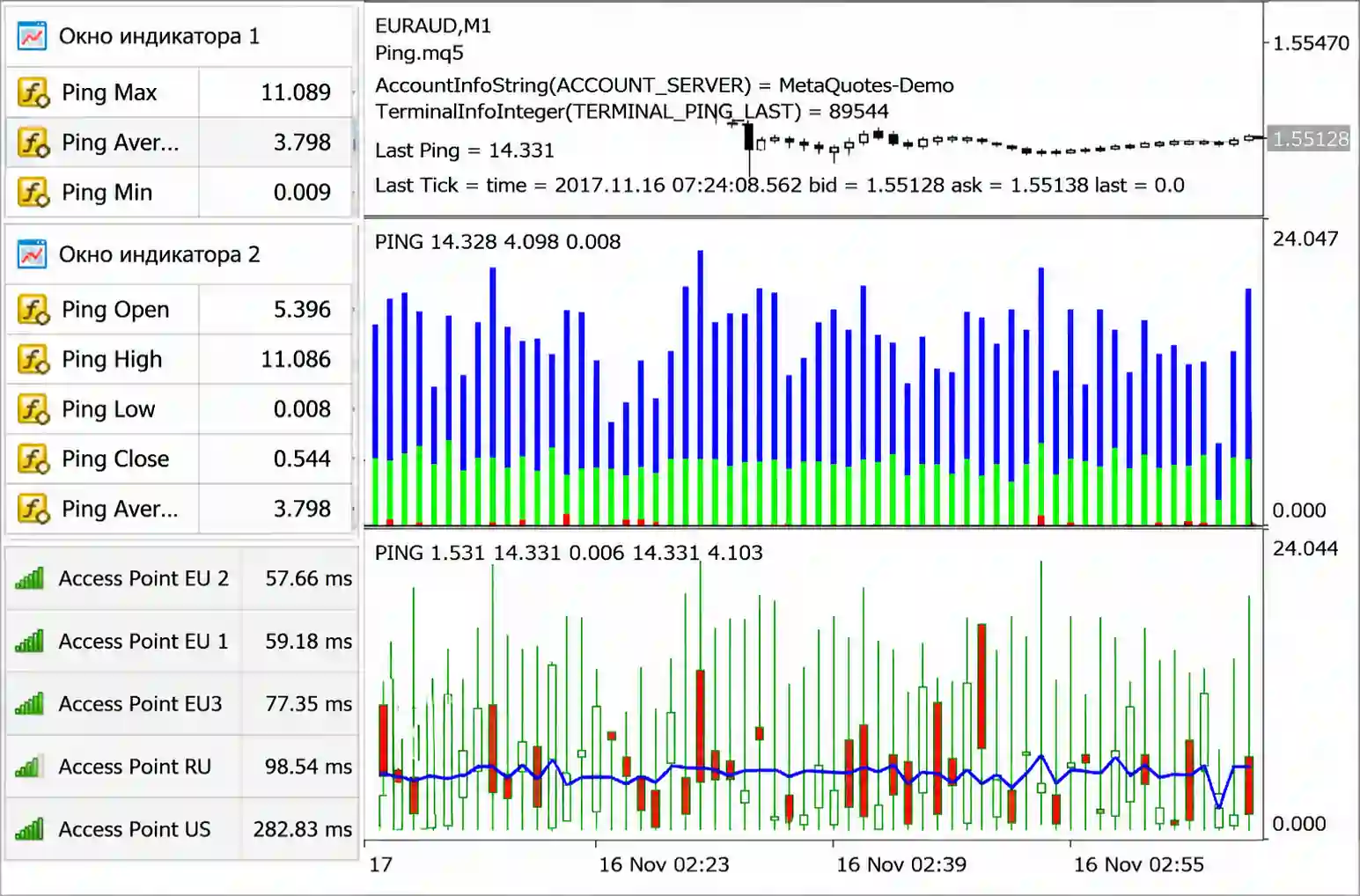
Run a demo account first. Keep the same EA, same broker server, same symbol list, same VPS location, and same trading hours as planned for live use.
Measure these items:
A VPS latency test should include quiet hours and volatile periods. Scalpers and news EAs need stricter checks than swing systems.
If ping is high, test another VPS region before changing EA logic. Server route can matter more than raw VPS power.
Step 10: Keep copies and recovery access
A beginner often thinks setup ends when EA starts. Real setup ends after you know how to recover.
Back up EA files, presets, indicators, broker installer, and account notes. Do not store trading account passwords inside open text files on the desktop.
Use cloud storage only for encrypted files. Better yet, keep EA files in a private storage folder with two-factor login.
Create a simple recovery note:
| Recovery item | What to record |
|---|---|
| VPS provider login | Account email and support access |
| VPS IP | Main server IP |
| Windows username | Admin or assigned user |
| Platform folders | Exact MT4 and MT5 paths |
| Broker server | Live server name |
| EA version | File name and version |
| Preset file | Exact preset used |
| Last tested setup | Date-free version note, such as “build v3 live check” |
If your VPS fails, you should be able to rebuild the setup without guessing.
Step 11: Monitor performance like a trader
Do not stare at charts all day just because your VPS is online. Watch system health instead.
Open Task Manager and check CPU, memory, disk, and network. If the CPU sits high with no market action, one indicator or EA may be too heavy.
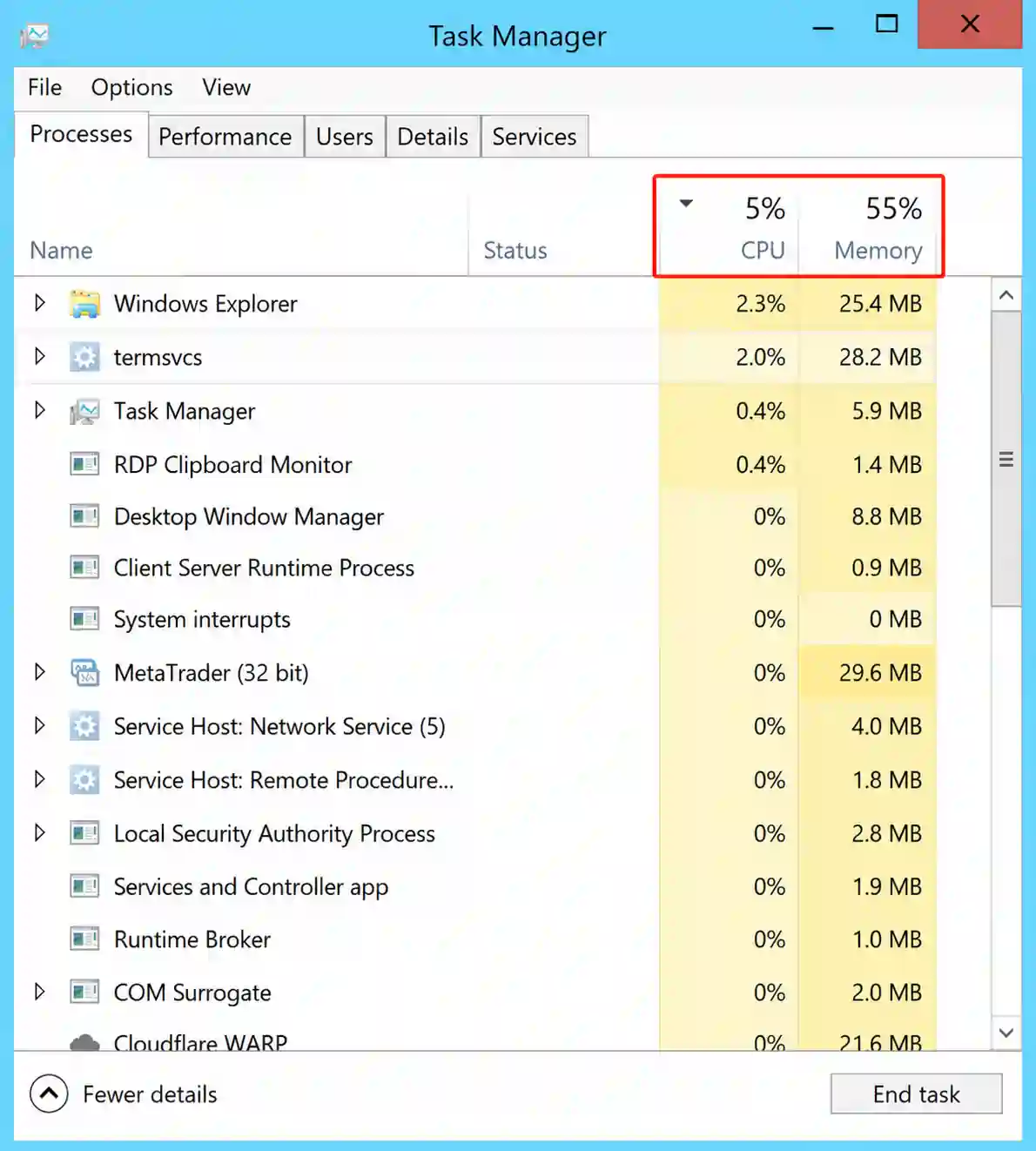
Check MetaTrader Journal and Experts tabs. These tabs reveal login errors, trade context errors, symbol mismatch, DLL blocks, and failed order attempts.
For remote desktop security, review login history if your provider panel offers it. Unexpected access attempts mean you should change password and tighten access rules.
Avoid too many terminals on one small server. If RAM stays high, upgrade or split accounts across two VPS units.
Step 12: Set update rules
Windows updates are important, but restarts during active trading can stop EAs. Set update timing for quiet market windows.
Do not disable updates forever. Unpatched remote servers can become security risks.
Before any restart, close MetaTrader cleanly. After restart, confirm each terminal opens, logs in, and shows correct EA smiley or active status.
Some traders use startup shortcuts so terminals reopen after reboot. Test this on demo before relying on it.
Keep a short setup log. Note what changed, why it changed, and which account it affects.
Advanced Checks Beginners Should Learn
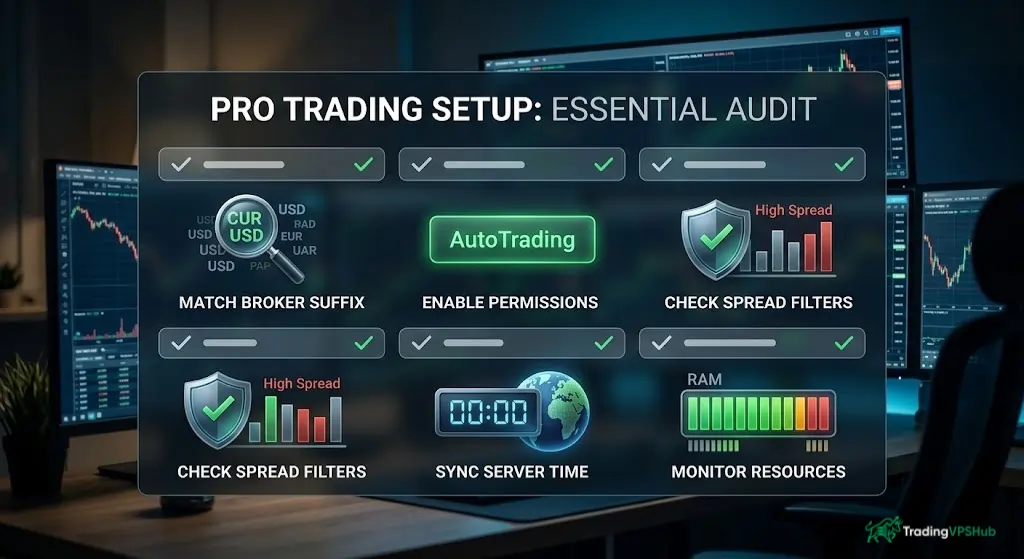
You do not need to be a network engineer. But you should know a few checks that catch most issues.
Check the symbol suffix first. Some brokers use EURUSD, others use EURUSD.a or EURUSDm. Wrong symbols means EA may not trade.
Check trading permissions. AutoTrading may be enabled globally, but EA settings can still block live orders.
Check DLL permission only if your EA needs it. Do not enable DLL imports for unknown files.
Check spread filters. Many EAs stop trading when spread exceeds the set limit. That is not a VPS fault.
Check server time. Some EAs use broker time, while others use local terminal time. Confirm session filters match strategy rules.
Check logs after the news. If terminal disconnects or freezes during volatile periods, server resources may be too low.
Check memory creep. Some custom indicators slowly increase RAM use. Restarting the schedule may help, but faulty code should be fixed.
FAQs
How much RAM does MT5 need on a Forex VPS?
MT5 can start with 2 GB RAM, but 4 GB or more is better for multiple charts, indicators, and automated forex trading stability.
Does the Remote Desktop close MT4 when I disconnect?
No. A normal RDP disconnect leaves Windows session active. Shutting down or signing out can stop MT4, MT5, Expert Advisors, and trade copier tools.
Should I enable Network Level Authentication on a trading VPS?
Yes. Network Level Authentication checks credentials before full RDP session creation, reducing exposure from unauthorised connection attempts and wasted server resources.
Can one Forex VPS host several MT4 and MT5 terminals?
Yes, but each terminal uses RAM, CPU, charts, and network calls. For multi account trading VPS use, monitor Task Manager before adding accounts.
How do I test Forex VPS latency inside MetaTrader?
Check connection ping, broker server name, and journal logs. MT5 hosting guidance compares local delay with hosting delay near broker servers.
Is RDP safe enough for live trading account access?
RDP can be safe when paired with strong passwords, remote desktop security, NLA, firewall rules, access limits, updates, and careful file handling.
Why does my VPS slow down during high-impact news?
High CPU, heavy indicators, many symbols, broker reconnects, or tick-heavy EAs can overload small servers. Upgrade resources or reduce platform load.
TradingVPSHub Setup Flow
My setup order is simple. I pick broker location first, not provider homepage claims.
Then I check Windows access, ping, resource use, and platform behaviour. TradingVPSHub’s test style focuses on real EAs, real brokers, and published latency work rather than generic vendor claims.
Here is a clean flow for your own desk:
If you trade funded accounts, copy signals, or use strict drawdown limits, do not skip testing. VPS setup is part of execution hygiene.